January 30, 2026



 Written by castfloer
Picture this: It’s the 90th minute of the Champions League final. Your team gets a penalty. The player steps up, begins his run-up… and the screen freezes. A spinning circle appears.
We have all been there. Buffering is the #1 enemy of IPTV fans.
Most sellers will just tell you to “restart your router.” While that sometimes helps, it rarely fixes the root cause. The truth is, 70% of buffering issues are caused by incorrect settings in your app, not a bad server.
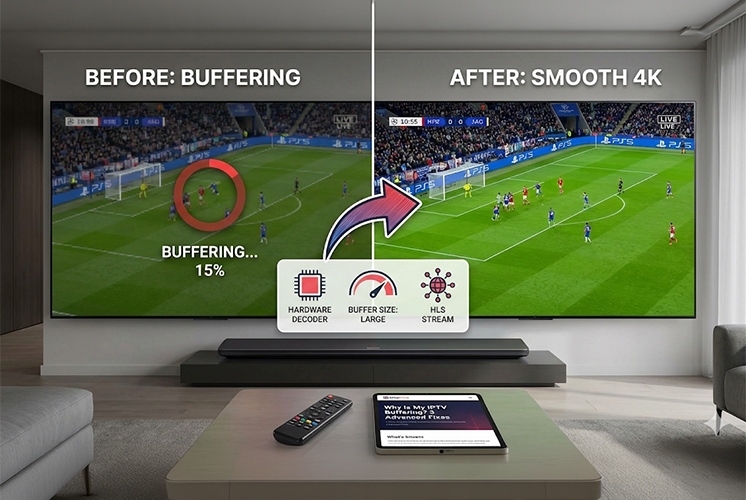
In this guide, we are moving beyond the basics. Here are 3 “Tech-Lite” settings you can change right now to fix IPTV buffering forever.
This is the most common mistake we see in 2026. Your IPTV app has two ways to process video: using your device’s main brain (CPU) or its specialized graphics chip (GPU).
Think of buffering like a water tank. Before your video plays, your app downloads a few seconds of video into a “tank” just in case your internet hiccups.
The Fix: If you have buffering issues, go to your app settings and increase the Buffer Size to “Large” or “5 Seconds”. You sacrifice zapping speed for stability.
This is a slightly more advanced trick that works wonders for people with unstable internet connections.
The Fix: In apps like TiviMate or IBO Player, check the “Stream Format” settings. If you are buffering on MPEG-TS, try switching to HLS.
Before you blame your internet provider or throw your remote at the TV, try these three fixes. Changing your decoder to Hardware, increasing your buffer size, and switching to HLS can solve 90% of lag issues.
However, if you have tried all of these and you are still buffering, the problem is likely your provider’s cheap servers. You can’t fix a bad signal with good settings.
Ready to upgrade to a true Anti-Freeze service?
Enjoy endless entertainment with smooth, high-definition streaming and instant access to thousands of channels with Castflo.
© 2025 CastFlo. All Rights Reserved.